Portfolio Development
Typography for Portfolios Build a Reading System
Your portfolio typography has one central job: help another person understand the work. Build the hierarchy from that task, then prove it with real content and real viewing conditions.

The short read
Design the reading path
Portfolio type should help someone identify projects, scan decisions, and read the proof without decoding the layout.
Give each style a job
Choose families, sizes, weights, and spacing because they signal a content role—not because the scale looks impressive alone.
Test the evidence
Use real case-study copy, responsive widths, and measured contrast. A polished type specimen is not the final environment.
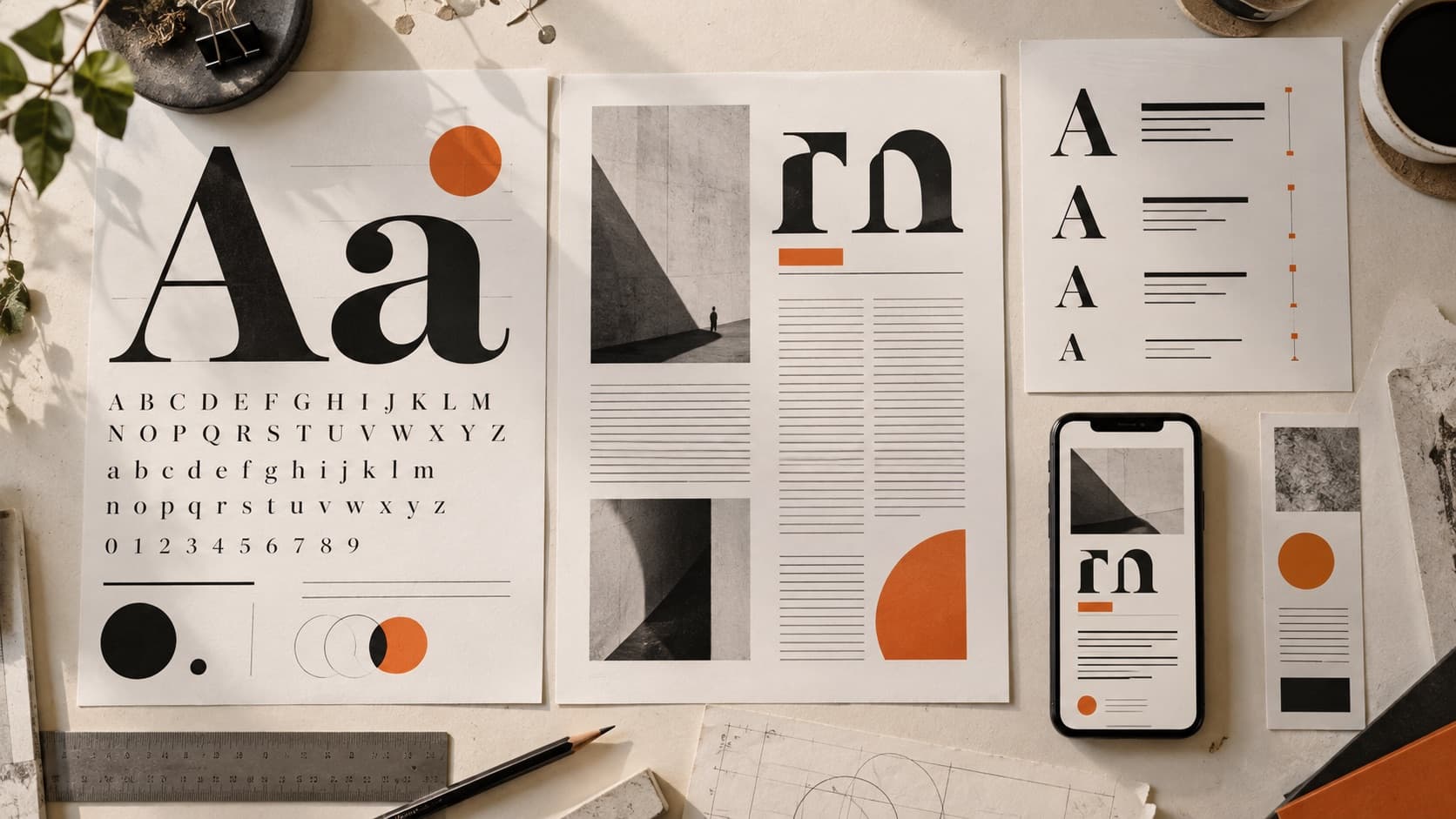
Start with what the reader is trying to learn
A portfolio is not a type specimen. The reader is trying to understand what you do, choose a project, follow the decisions, and decide whether your experience fits a need. Typography should reduce the effort required to do that.
Open one real case study and ignore the font names. Can you tell what the project is, what you owned, where the argument changes, which images carry evidence, and what happened? If the answer depends on reading every line, the hierarchy needs work before the font pairing does.
The first typography decision
What should someone understand while scanning, and what deserves slower reading?
Use stronger contrast, placement, size, or weight for the information that supports orientation. Keep supporting detail available without giving every label the same visual urgency.
Assign the content roles before the type styles
Make a short inventory of the recurring information in your portfolio. You may not need eight heading levels. You may need one clearer caption and a more distinct project title.
| Role | Job | Question to test |
|---|---|---|
| Project title | Identify the work and establish the first level of hierarchy. | Can someone distinguish projects while scanning the page? |
| Section heading | Mark a change in the argument or stage of the story. | Does it help orientation without overpowering the project title? |
| Body | Carry the case-study explanation comfortably. | Can someone read several paragraphs without zooming or losing the next line? |
| Caption | Explain why an artifact matters. | Is it visibly connected to the image and still readable? |
| Metadata | Expose role, date, team, tools, or outcome for quick reference. | Is it easy to find without competing with the narrative? |
Name styles by purpose—such as Project title, Body, and Caption—instead of tying the system to a temporary size. The names should survive when the values change at another breakpoint.
Choose families with the difficult content
Start with the body face because it carries the most reading. Test paragraphs, numbers, punctuation, project names, client names, captions, and any languages the portfolio includes. Check the weights you will really use; a family with a beautiful regular style may have a weak bold or italic.
Then decide whether a second family adds something useful. Contrast can come from classification, proportion, weight, width, or texture. It should help the reader distinguish roles or establish the intended voice—not merely prove that two fonts are different.
One family
Use variation inside a reliable system
A family with suitable weights and styles can keep the portfolio quiet and cohesive. Create hierarchy through size, weight, spacing, and color before adding another voice.
Two families
Give the contrast a specific job
A display and text pairing can separate editorial voice from sustained reading. Test repeated project titles and awkward line breaks; the interesting option still has to carry the content.
Use the Font Pairing tool to compare real portfolio copy quickly, then bring the pairing back into the full page before deciding.
Build hierarchy through relationships, not isolated numbers
A heading is not strong because it is large. It is strong because its relationship to surrounding text makes the content structure clear. Compare levels together on the page, including the space above and below them.
Make the project title unmistakable
It should lead the project opening without forcing the summary, role, or outcome so far down the page that context disappears.
Let section headings support the argument
Write headings that reveal the decision or finding when possible. “Research” names a phase; “Returns failed because status disappeared” gives the reader a reason to continue.
Keep labels from competing
Uppercase, tracking, monospace, and muted color can distinguish metadata, but using all of them everywhere creates another layer of noise.
Connect captions to evidence
Place captions close to the image they explain. Use enough contrast and size that they remain part of the reading experience rather than fine print.
The fonts look good. Does the case study read?
Share one portfolio page as it appears now. Your free First Read identifies the visible issue most worth addressing next.
Control line length and spacing in the real layout
Long lines make it harder to return to the start of the next line. Very short lines interrupt reading and can turn ordinary sentences into a tall column. Set a readable content measure, then adjust it with the actual face, size, and case-study copy.
Line height should give the text room without disconnecting each line from the paragraph. Spacing between paragraphs, headings, images, and captions should explain which elements belong together. Use a consistent spacing system, but correct optical problems when the typeface or content creates them.
Measure
Can the eye move to the next line without searching?
Leading
Do lines feel connected as a paragraph without touching?
Spacing
Can someone tell which heading, image, caption, and explanation belong together?
Test responsive type between the breakpoints
Do not review only a large desktop and one phone preset. Drag through the widths between them. Look for single-word heading lines, cramped metadata, captions separated from images, and text columns that grow too wide before the layout changes.
Fluid sizing with CSS clamp() can smooth the change between a minimum, preferred, and maximum value. It does not remove the need to inspect line breaks and hierarchy. A fluid mistake is still a mistake at every width.
Test the content that breaks first
Use the longest title, messiest metadata, and densest caption
A neat placeholder proves very little. Stress the type system with the real strings most likely to wrap, collide, or lose hierarchy.
Measure contrast; do not infer it from a screenshot
For WCAG 2.2 level AA, the W3C guidance for text contrast uses at least 4.5:1 for normal text and 3:1 for large text, with defined exceptions. The thresholds depend on the rendered size and weight—not the style name in your design file.
Measure the actual foreground and background values in the final interface. For text over an image, gradient, video, or translucent layer, check the least favorable area behind the text and test the real state. If you only have a screenshot with uncertain compression or colors, point to the element that needs checking rather than inventing a ratio.
Also check non-text cues
Links, focus states, errors, and controls should not depend on a barely visible color change. Contrast is one part of the evidence; labels, underlines, shape, position, and state behavior can also carry meaning.
Preserve user control
Do not disable zoom or force tiny text to protect the composition. Check browser zoom, text resizing, keyboard focus, and the page with custom fonts delayed or unavailable.
Run the final typography audit from the outside
Scan without reading
Can you identify project titles, section changes, evidence, captions, and the next action from the hierarchy alone?
Read one complete case study
Notice fatigue, unclear transitions, repeated emphasis, and places where the layout separates text from the artifact it explains.
Test representative widths and zoom
Check narrow mobile, wider mobile, tablet, laptop, and a large screen. Include browser zoom and larger text.
Verify the implementation
Measure contrast, inspect focus and links, confirm fallbacks, and check whether webfont loading changes the layout.
Fix the problem that changes comprehension most. A new font rarely repairs a portfolio whose headings say nothing, whose captions are disconnected, or whose project pages have no clear reading order.
QuestionsAnswers
Questions, answered.
A few practical details before you keep going
For the broader principles behind these decisions, read the typography principles guide. For combinations to test, use the font pairing guide.
Share this resource

Written by
Nikki KippleProduct Designer & Design Instructor
Designer, educator, founder of The Crit. I've spent years teaching interaction design and reviewing hundreds of student portfolios. Good feedback shouldn't require being enrolled in my class — so I built a tool that gives it to everyone. Connect on LinkedIn →
A type system can be consistent and still make the work hard to read.
Send one portfolio page. We will look at the visible hierarchy, reading path, and the issue most worth addressing first.