Fundamentals
12 Design Principles Clearly Explained
A practical guide to contrast, hierarchy, balance, rhythm, and the rest — with examples, common mistakes, and a checklist you can actually use on real work.

The short read
12 principles
The complete set of fundamental design rules
Interactive examples
Good vs bad examples for each principle
Free checklist
Audit any design in 5 minutes
Why Design Principles Matter
If you keep mixing up contrast, hierarchy, balance, rhythm, and emphasis, you are not alone. Most design principles content either sounds like a textbook or stays so vague it never helps you make better work. This guide is meant to be more useful than that.
Design principles are the rules underneath work that feels clear, intentional, and professional. They explain why one layout feels obvious and another feels messy — even when the colors, fonts, and components are technically fine.
The good news:
- These principles are learnable — you don't need "natural talent"
- They apply to all design — web, print, product, UI, anything visual
- Once you see them, you can't unsee them — your eye will level up permanently
Use this page based on what you need:
- • Brand new to this topic? Start with design principles for beginners
- • Struggling with type decisions? Read the typography fundamentals guide
- • Struggling with color decisions? Jump to the color theory guide
- • Building a portfolio? Pair this with our portfolio examples gallery
This guide covers all 12 principles with practical examples and a checklist you can use to audit a landing page, portfolio case study, poster, or app screen. Start with Balance, then work through the rest like an actual design review instead of trying to memorize definitions in isolation.
1. Balance ⚖️
The distribution of visual weight in a design. Balance creates stability and structure.
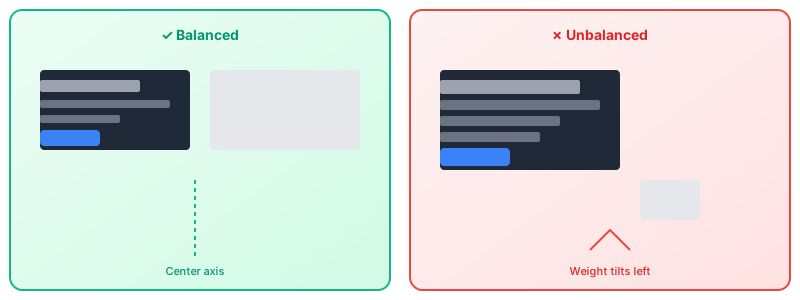
Types of Balance:
Good Example
A landing page with a headline on the left balanced by an image on the right
✗ Bad Example
All content crammed into one corner with empty space elsewhere
Quick Tip: Squint at your design. If one area feels "heavier," you have a balance problem.
2. Contrast ◐
The difference between elements that makes them distinguishable. Contrast creates visual interest and guides attention.
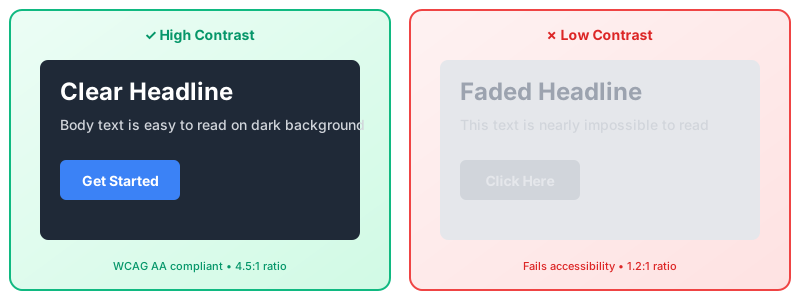
Types of Contrast:
Good Example
White text on a dark background with a bright CTA button
✗ Bad Example
Gray text on a slightly different gray background
Quick Tip: If you have to ask "is there enough contrast?" — there isn't.
3. Emphasis 🎯
The focal point of a design. Emphasis tells viewers where to look first.

Types of Emphasis:
Good Example
A hero section with one clear headline and CTA
✗ Bad Example
Everything is bold, underlined, and "important"
Quick Tip: Every design needs ONE star. If everything is emphasized, nothing is.
4. Movement →
The path a viewer's eye follows through a design. Movement guides the viewing experience.
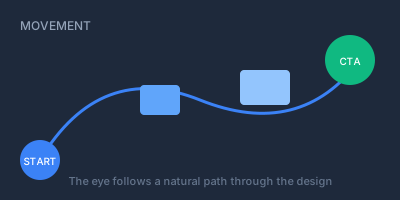
Types of Movement:
Good Example
A landing page that flows: headline → image → benefits → CTA
✗ Bad Example
Random scattered elements with no clear reading order
Quick Tip: Trace where your eye goes naturally. That's your movement path.
5. Pattern ▦
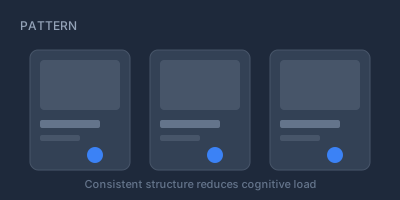
The repetition of elements in a predictable manner. Patterns create consistency and reinforce branding.
Types of Pattern:
Good Example
A consistent card design used throughout an app
✗ Bad Example
Every section has a completely different layout style
Quick Tip: Patterns reduce cognitive load. Users shouldn't have to relearn your design on each page.
6. Rhythm ♪
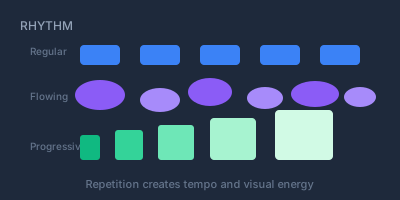
The visual tempo created by repeating elements. Rhythm creates energy and flow.
Types of Rhythm:
Good Example
A pricing page with evenly spaced tier cards
✗ Bad Example
Inconsistent spacing that feels random and chaotic
Quick Tip: Use consistent spacing values (8px grid) to create natural rhythm.
7. Unity 🔗
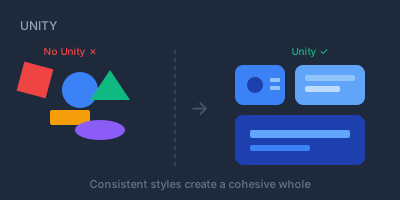
The sense that all elements belong together. Unity creates cohesion and professionalism.
Types of Unity:
Good Example
A brand that uses the same 3 colors and 2 fonts everywhere
✗ Bad Example
A Frankenstein design with 7 fonts and random stock photos
Quick Tip: Unity comes from restraint. Limit your palette, fonts, and styles.
8. Variety 🎨
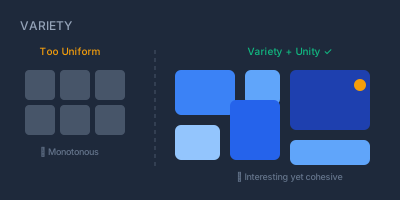
The use of different elements to create visual interest. Variety prevents monotony.
Types of Variety:
Good Example
A blog post with headings, body text, pull quotes, and images
✗ Bad Example
A wall of identical-looking text blocks
Quick Tip: Balance variety with unity. Variety within a consistent system.
9. Proportion 📐
The relative size and scale of elements. Proportion creates harmony and guides importance.
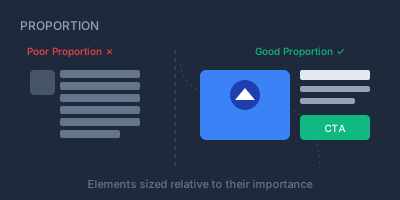
Types of Proportion:
Good Example
A hero image that takes up 60% of viewport, with 40% for content
✗ Bad Example
A tiny headline with massive body text
Quick Tip: When in doubt, use classic proportions: 2:3, 3:5, or the golden ratio.
10. Hierarchy 📊
The arrangement of elements to show importance. Hierarchy guides users through content.
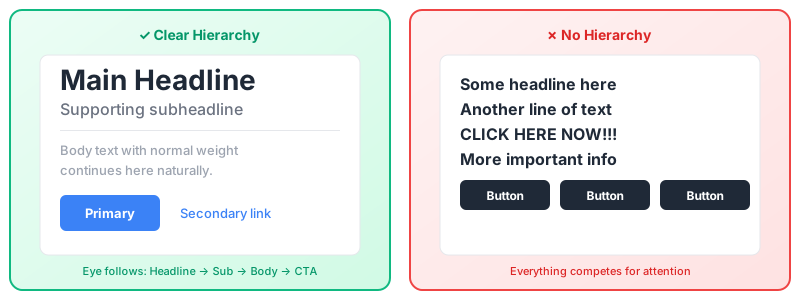
Types of Hierarchy:
Good Example
Clear heading levels: massive H1, smaller H2, even smaller H3
✗ Bad Example
Everything the same size and weight
Quick Tip: Design in grayscale first to ensure hierarchy works without color.
11. White Space ⬜
The empty space between and around elements. White space creates breathing room and focus.
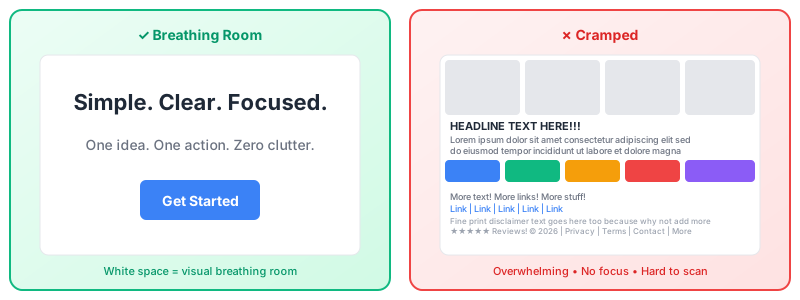
Types of White Space:
Good Example
Apple's product pages with generous margins and spacing
✗ Bad Example
A cluttered flyer with no breathing room
Quick Tip: When in doubt, add more white space. Amateur designs are almost always too cramped.
12. Alignment ≡
The arrangement of elements along invisible lines. Alignment creates order and connection.
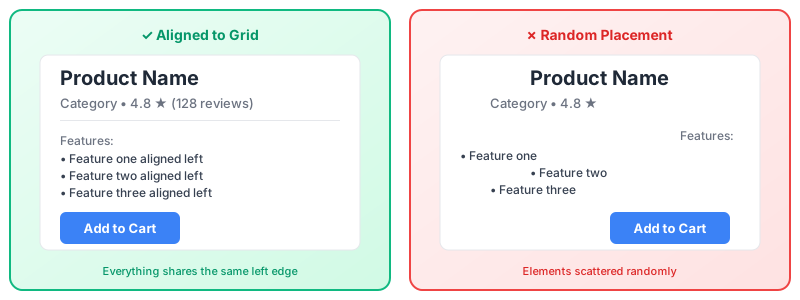
Types of Alignment:
Good Example
Form labels and inputs all aligned to a left edge
✗ Bad Example
Randomly placed elements with no visible structure
Quick Tip: Turn on guides/grids in your design tool. Everything should snap to something.
Design Principles Checklist ✓
Use this checklist to audit any design in under 5 minutes. Go through each principle and rate your design honestly.
Want Professional Feedback?
Get your designs analyzed against all 12 principles instantly.
Try The Crit Free →6 Common Mistakes (And How to Fix Them)
These are the pitfalls we see most often. For a more comprehensive list, see our common design mistakes guide.
Breaking hierarchy
Problem: Everything looks equally important
Fix: Design in grayscale first, ensure 3-4 distinct levels of importance
Ignoring alignment
Problem: Design feels messy and unprofessional
Fix: Use a grid system, snap everything to invisible lines
Insufficient contrast
Problem: Text is hard to read, CTAs don't stand out
Fix: Check WCAG contrast ratios, aim for AAA (7:1) for body text
Too little white space
Problem: Design feels cramped and overwhelming
Fix: Double your padding/margins, then reduce only if necessary
Inconsistent patterns
Problem: Users have to relearn the interface on each page
Fix: Create a component library, reuse patterns religiously
No focal point
Problem: Users don't know where to look
Fix: Identify ONE key element per section and make it unmissable
QuestionsAnswers
Questions, answered.
A few practical details before you keep going
Share this resource

Written by
The CritDesign Education
Designer, educator, founder of The Crit. I've spent years teaching interaction design and reviewing hundreds of student portfolios. Good feedback shouldn't require being enrolled in my class — so I built a tool that gives it to everyone. Connect on LinkedIn →
Too close to your own work?
Send one screen, case study, or URL. We'll show what's working, what's getting skipped, and what to fix next.