Portfolio Development
Portfolio Navigation: Make the Next Move Obvious
Navigation should help a reviewer identify you, find relevant work, stay oriented inside a case study, compare projects, and contact you—without decoding the interface.

The short read
Start with
The tasks reviewers need to complete and the content you actually have
Label
Destinations with familiar, descriptive language
Show
Current location, focus, menu state, and next-project context
Test
Real tasks with keyboard, touch, zoom, narrow screens, and fresh readers
Map the Reviewer Tasks
Start with tasks, not a universal menu template. A hiring portfolio commonly needs to support:
- Identify the designer's role, focus, and level.
- Browse or open a relevant project.
- Understand project context and the designer's contribution.
- Move to another project without losing orientation.
- Read about the designer's background.
- Open a resume or requested artifact.
- Contact the designer or return later.
A client-focused, editorial, research, or multidisciplinary portfolio may need different tasks. Write yours down before naming pages.
Choose the Smallest Useful Structure
- Home or Work
- Orient the reader and expose the strongest relevant projects.Combine these destinations when separate pages would duplicate the same job.
- Project pages
- Use stable, descriptive routes and a consistent pattern for project context, story, and next navigation.
- About
- Add background, perspective, and relevant experience that do not belong in a project.It can share a page with contact when content is brief.
- Resume and contact
- Make requested application material and a real next step available.A resume can be a download or viewable page; label the format.
Use Descriptive Labels
Requires interpretation
Creative labels without orientation
Names the destination
Familiar labels with room for voice
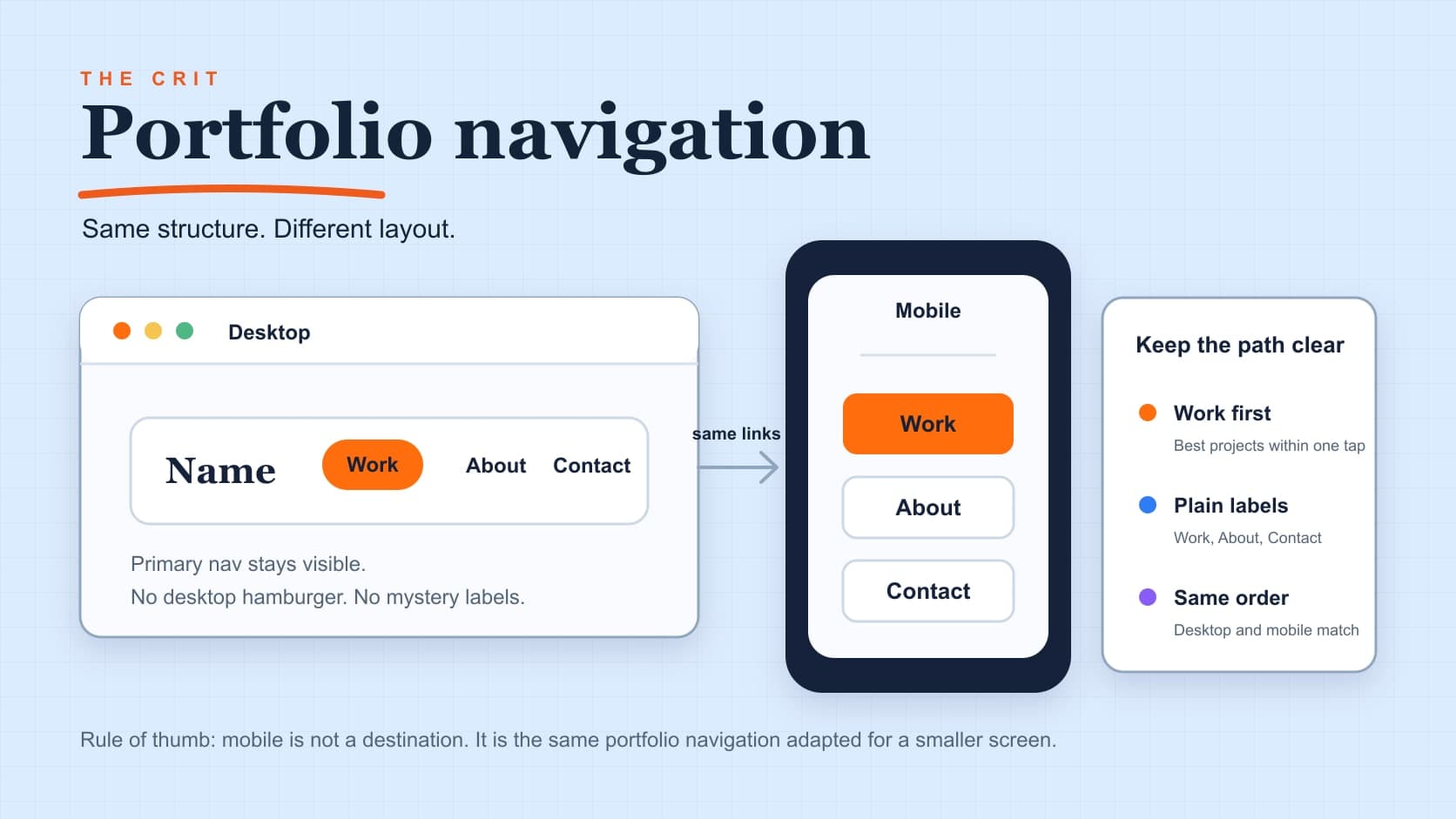
- Use the same label for the same destination across desktop, mobile, footer, and in-page links.
- Give icon-only controls an accessible name and a visually understandable symbol.
- Write project links with project name plus useful context, not a repeated “View case study.”
- Distinguish a download from a page when the behavior matters.
Show Location and State
- Mark the current page in persistent navigation visually and, where appropriate, with
aria-current. - Give links, buttons, and menu triggers distinct hover, active, and keyboard-focus states.
- Expose whether a collapsed menu or disclosure is open.
- Keep browser Back behavior intact; do not replace normal navigation with surprising scroll or modal behavior.
- Use breadcrumbs only when the hierarchy is deep enough to need them.
- When opening an overlay, manage focus and provide a predictable close action.
Support Long Case Studies
- Start with a concise project summary so a reader can decide whether to continue.
- Use descriptive section headings and a table of contents only when the article length benefits from one.
- Make anchor links land below sticky headers and move keyboard focus appropriately when custom behavior is involved.
- Keep reading order coherent when grids stack on narrow screens.
- End with a reflection and a descriptive next-project choice rather than an unexplained arrow.
- Preserve a clear route back to all work without forcing repeated browser-history gymnastics.
Make Collapsed Navigation Operable
- Use a button for the menu trigger, not a link or clickable div.
- Give it a clear accessible name and expose the expanded state.
- Keep the menu order logical and all controls reachable by keyboard.
- Do not hide focused links behind the header, browser chrome, or an unscrollable panel.
- Close with the same trigger, Escape when appropriate, and a visible close control.
- Return focus to the trigger after closing an overlay-style menu.
- Use target size and spacing that support touch without relying on a rigid device-specific template.
Pair this with the mobile portfolio design guide.
Run Task-Based Tests
- 1Fresh-reader testAsk someone to find a project that proves a named capability, then explain how they chose it.
- 2Keyboard testComplete the main tasks with Tab, Shift+Tab, Enter, Space, arrows, and Escape.
- 3Mobile testUse touch on a real phone in both orientations, including the menu and next-project path.
- 4Zoom and reflow testVerify navigation at 200% zoom and narrow widths.
- 5Screen-reader testInspect landmarks, labels, current state, link purpose, headings, and menu announcements.
- 6Failure testCheck broken, missing, private, and slow destinations plus the recovery path.
Observe where the person looks, what they predict, and what they do. A fixed “five-second test” is not a substitute for completing the real task.
Standards and Further Reading
- W3C WAI: Menus tutorial — semantic structure, labeling, current items, fly-outs, and application menus.
- W3C: WCAG 2.2 — keyboard access, focus, link purpose, consistent navigation, target size, and reflow.
- WAI-ARIA Authoring Practices: Disclosure pattern — behavior and keyboard interaction for show/hide controls.
- GOV.UK Design System: Header — a documented example of responsive, accessible service navigation.
QuestionsAnswers
Portfolio Navigation Questions
A few practical details before you keep going
Share this resource

Written by
Nikki KippleProduct Designer & Design Instructor
Designer, educator, founder of The Crit. I've spent years teaching interaction design and reviewing hundreds of student portfolios. Good feedback shouldn't require being enrolled in my class — so I built a tool that gives it to everyone. Connect on LinkedIn →
Too close to your own work?
Send one screen, case study, or URL. We'll show what's working, what's getting skipped, and what to fix next.