Tools & Workflow
How to Code a Portfolio Website
A practical build path for designers: choose the simplest stack that fits the work, create the essential pages, and test the real portfolio before adding complexity.

The short read
Choose by maintenance
Use the lightest stack that supports the content, interaction, and update rhythm you actually need.
Build with real work
Your longest title, largest case study, and least tidy image should shape the system—not demo content.
Ship a useful path
Identity, selected work, project context, navigation, and contact matter before polish or animation.
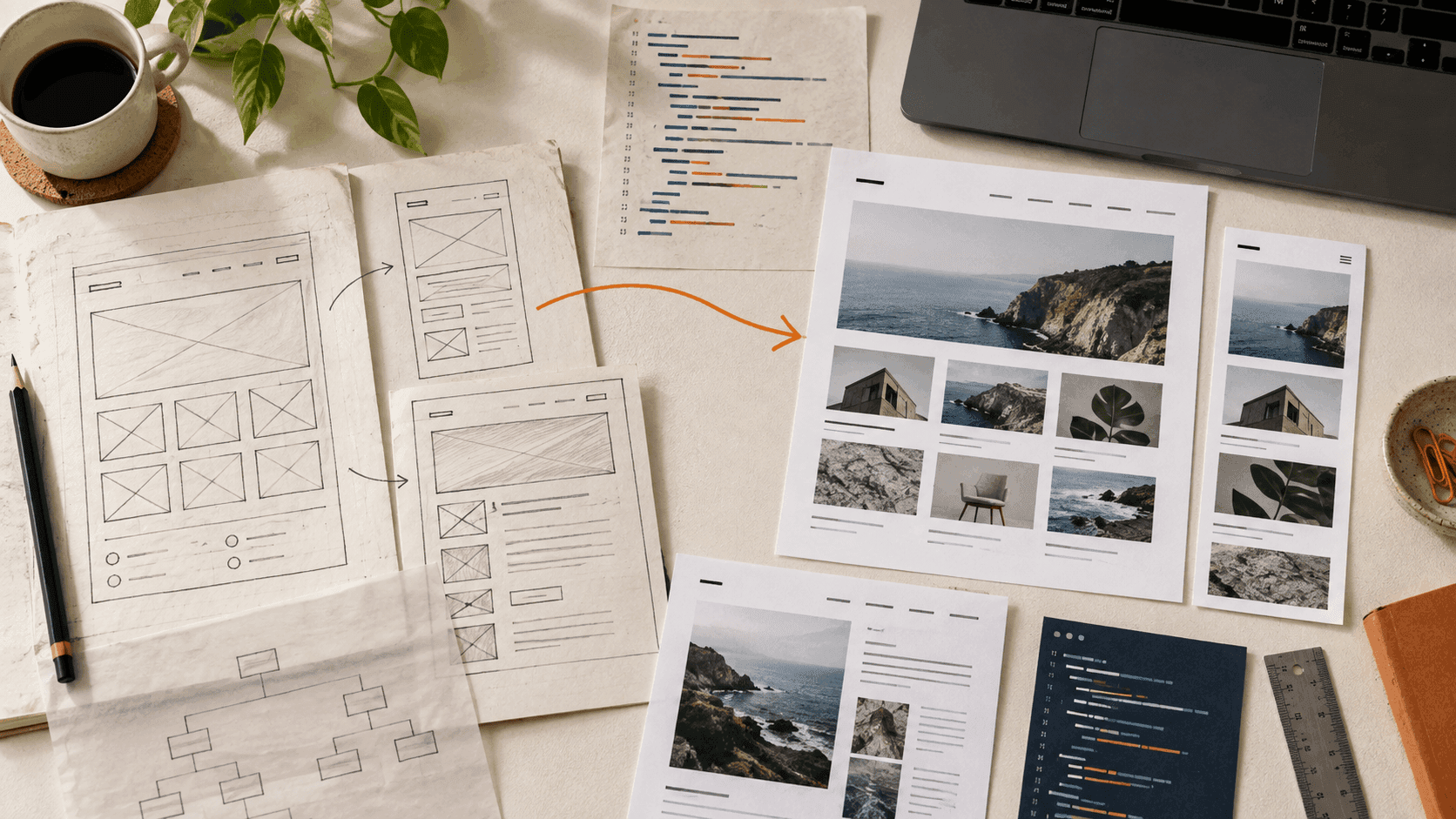
Before you code, decide what the portfolio has to prove
A coded portfolio is not automatically more convincing than a site built with a template. Code gives you control over structure, behavior, performance, and maintenance. It does not decide which projects matter, explain your role, or turn screenshots into a case.
Start with the reader’s path. Someone should be able to identify who you are, choose relevant work, understand the context of a project, and find a real way to contact you. That path is the product. The framework is one implementation choice.
Write this down before opening the terminal
- The role or kind of work the portfolio is making a case for.
- The projects that provide the strongest evidence for that direction.
- The shared information every project needs—and the details that should remain flexible.
- The interactions that genuinely need code instead of a static presentation.
- Who will update the site, how often, and with which level of technical comfort.
Choose the lightest route that fits the work
There is no universal portfolio stack. The useful question is what the site needs to render, repeat, publish, and maintain.
Choose by requirement—not by status
- Static HTML and CSS
- Use when the site is small, the content changes infrequently, and learning the browser fundamentals is part of the goal.
- Content-focused framework
- Use when project stories, writing, or image-heavy pages benefit from templates and content files without much client-side behavior.
- Next.js or another application framework
- Use when shared layouts, generated project routes, reusable components, data, or richer interaction justify the additional system.
- Builder or hosted portfolio
- Use when publishing speed, visual editing, and low-maintenance ownership matter more than demonstrating implementation craft.
A reason to add a framework
The content repeats
A reason to stay simple
The site is already understandable
Build the minimum useful portfolio first
Build one complete reader path before a design system, animation library, theme switcher, or CMS. The exact page count can vary, but the responsibilities are stable.
The first working version
- 1Shared orientationName, role or focus, primary navigation, and a contact route that remain available across the site.
- 2Work indexA homepage or selected-work page that helps someone distinguish and choose projects.
- 3One complete project routeA project page that explains the question, your contribution, consequential decisions, evidence, and outcome or current state.
- 4Supporting contextAn About page, resume, or short background only when it helps the reader interpret the work.
- 5Production proofDirect links work, metadata is accurate, the domain resolves, and the site remains usable outside your own laptop.
The homepage and project page have different jobs. If you are still deciding how the work index should behave, compare the structures in the portfolio layout guide. Keep the case-study interior focused enough that it can also stand alone as a direct link.
Static HTML and CSS is a real starting point
HTML already provides meaningful elements for headers, navigation, main content, sections, articles, headings, links, and images. Starting with those elements keeps the document understandable before styling or JavaScript arrives.
<header>
  <a href="/">Your Name</a>
  <nav aria-label="Primary">
    <a href="/#work">Work</a>
    <a href="/about.html">About</a>
    <a href="mailto:you@example.com">Contact</a>
  </nav>
</header>

<main>
  <section aria-labelledby="intro-heading">
    <h1 id="intro-heading">Product designer focused on…</h1>
    <p>A short, specific introduction.</p>
  </section>

  <section id="work" aria-labelledby="work-heading">
    <h2 id="work-heading">Selected work</h2>
    <!-- Project links belong here -->
  </section>
</main>
Use CSS Grid or Flexbox where the content needs layout, and let the document remain fluid. A grid based on available space is often more durable than a list of device-specific breakpoints.
.project-grid {
  display: grid;
  grid-template-columns: repeat(auto-fit, minmax(min(100%, 18rem), 1fr));
  gap: clamp(1rem, 3vw, 2rem);
}

img {
  display: block;
  max-width: 100%;
  height: auto;
}
This path is especially useful when you want to understand the medium rather than hide it behind abstractions. You can still add a build tool, component framework, or content system later when a repeated problem appears.
Use Next.js when the system earns it
Next.js is a credible option for a portfolio with reusable layouts, generated project routes, structured content, or interactive work. It is not a requirement. The current Next.js installer’s recommended defaults include TypeScript, Tailwind CSS, ESLint, App Router, and Turbopack, so confirm the generated setup instead of following an older tutorial line by line.
npx create-next-app@latest my-portfolio --yes
cd my-portfolio
npm run dev
If you add Tailwind manually, follow the current framework guide. Tailwind 4 uses the PostCSS plugin and a CSS import; many older tutorials still describe the Tailwind 3 configuration flow. Keep the dependency surface small until the portfolio actually needs it.
Model the content without flattening every project
Reusable components are helpful when they preserve consistency in navigation, spacing, headings, credits, and project metadata. They become a problem when every case study is forced into the same number of sections regardless of the work.
export type Project = {
  slug: string
  title: string
  summary: string
  role: string
  cover: string
  tags: string[]
}

export const projects: Project[] = [
  {
    slug: 'project-name',
    title: 'Project name',
    summary: 'The problem and the change this work created.',
    role: 'Product design',
    cover: '/images/project-name/cover.webp',
    tags: ['Research', 'Interaction design'],
  },
]
Standardize
What helps readers orient
Keep flexible
What the project needs to prove
Begin with local TypeScript, JSON, Markdown, or MDX when one person maintains the site. Add a CMS when publishing roles, volume, preview needs, or structured reuse make the extra system worthwhile.
Responsive behavior begins with reading order
A responsive portfolio is not the desktop composition compressed onto a phone. Preserve the meaning and priority of the page as space changes. Source order matters because it affects keyboard navigation, screen readers, and what remains understandable when layout styles simplify.
Verify the page—not just the breakpoint
- Use semantic landmarks, headings, links, buttons, labels, and image alternatives for their intended jobs.
- Keep the source order meaningful before using grid placement or absolute positioning.
- Check narrow widths, wide screens, text enlarged to 200%, and 320 CSS-pixel reflow without avoidable two-dimensional scrolling.
- Navigate every interactive control with a keyboard and keep focus visible.
- Respect reduced-motion preferences and ensure essential information does not depend on animation.
- Test the actual project titles, captions, credits, and images rather than tidy placeholders.
Accessibility checks should match the evidence. Measure contrast from the rendered colors, inspect the accessible name of controls, verify focus behavior, and test reflow in the browser. Do not claim a visual screenshot proves DOM structure, keyboard support, or alt text that has not been inspected.
Treat portfolio images as product content
Images often carry the largest visual and download cost in a portfolio. Export each image for its actual display job, provide dimensions, and avoid sending a desktop-sized asset to every narrow screen. Use responsive image markup or your framework’s image tools when they solve that delivery problem.
Give each image a job
- Project cover
- Help someone distinguish the project and decide whether to open it; do not hide the work inside a generic device mockup.
- Evidence image
- Support a specific claim in the story with enough detail, caption, and context to be understood.
- Decorative image
- Keep it out of the accessibility tree when it adds no information, and question whether its bytes are earning their place.
- Largest visible image
- Inspect whether it is discoverable early, correctly sized, compressed appropriately, and delayed by scripts or rendering work.
Measure the production site with browser tools and real-user data when available. A framework can provide useful defaults, but it cannot know whether your hero image, font loading, client-side code, or third-party scripts are the actual bottleneck.
Deploy early enough to find the real problems
A local build cannot prove the domain, direct routes, production environment, social previews, redirects, or deployment settings. Connect the repository to a host, use preview deployments for work in progress, and verify the production URL after the final merge.
A practical release check
- 1Build locallyResolve type, lint, link, and production-build failures before treating a preview as ready.
- 2Review the previewOpen the homepage and a deep project link on desktop and mobile; check content, focus, media, navigation, and console errors.
- 3Verify metadataConfirm the title, description, canonical URL, social image, article dates, favicon, and robots behavior match the route.
- 4Test productionAfter release, verify the custom domain, HTTPS, direct routes, forms or email links, analytics, sitemap, and representative performance.
- 5Make maintenance visibleRecord how to add a project, replace an image, update dependencies, and roll back a bad release.
Sources and current implementation references
Framework commands and hosting behavior change. The implementation details in this guide were checked against current first-party documentation on September 25, 2026.
- Next.js: Installation for current create-next-app defaults, prerequisites, and App Router setup.
- Tailwind CSS: Install with Next.js for the current PostCSS and CSS import flow.
- MDN: Structuring documents and HTML accessibility for semantic structure and source-order fundamentals.
- MDN: Responsive web design for fluid layout, flexible media, and content-led breakpoints.
- W3C: Understanding WCAG 2.2 for reflow, focus, target size, and other criteria that should be verified in the rendered site.
- web.dev: Optimize Largest Contentful Paint for diagnosing image discovery, resource load, rendering, and main-thread delay rather than assuming one fix.
- Vercel: Deploying Git repositories for preview and production deployment behavior.
QuestionsAnswers
Questions, answered.
A few practical details before you keep going
Share this resource

Written by
Nikki KippleProduct Designer & Design Instructor
Designer, educator, founder of The Crit. I've spent years teaching interaction design and reviewing hundreds of student portfolios. Good feedback shouldn't require being enrolled in my class — so I built a tool that gives it to everyone. Connect on LinkedIn →
The code can work while the portfolio still hides the story.
Share the live site as it stands. We will show what a reader can understand from the homepage now—and what a deeper Full Crit could examine across the portfolio shell.