Portfolio Development
Image Optimization for Portfolios: Protect the Proof and the Page
The goal is not the smallest file at any cost. Deliver enough visual evidence for the rendered context, at the right time, without wasting bandwidth, shifting the layout, or hiding meaning from assistive technology.

The short read
Decide first
What the image proves and how large it will render
Compare
Export candidate formats and inspect them at the actual display size
Deliver
Use responsive candidates, accurate size hints, and reserved dimensions
Prioritize
Load critical images promptly and defer noncritical offscreen media
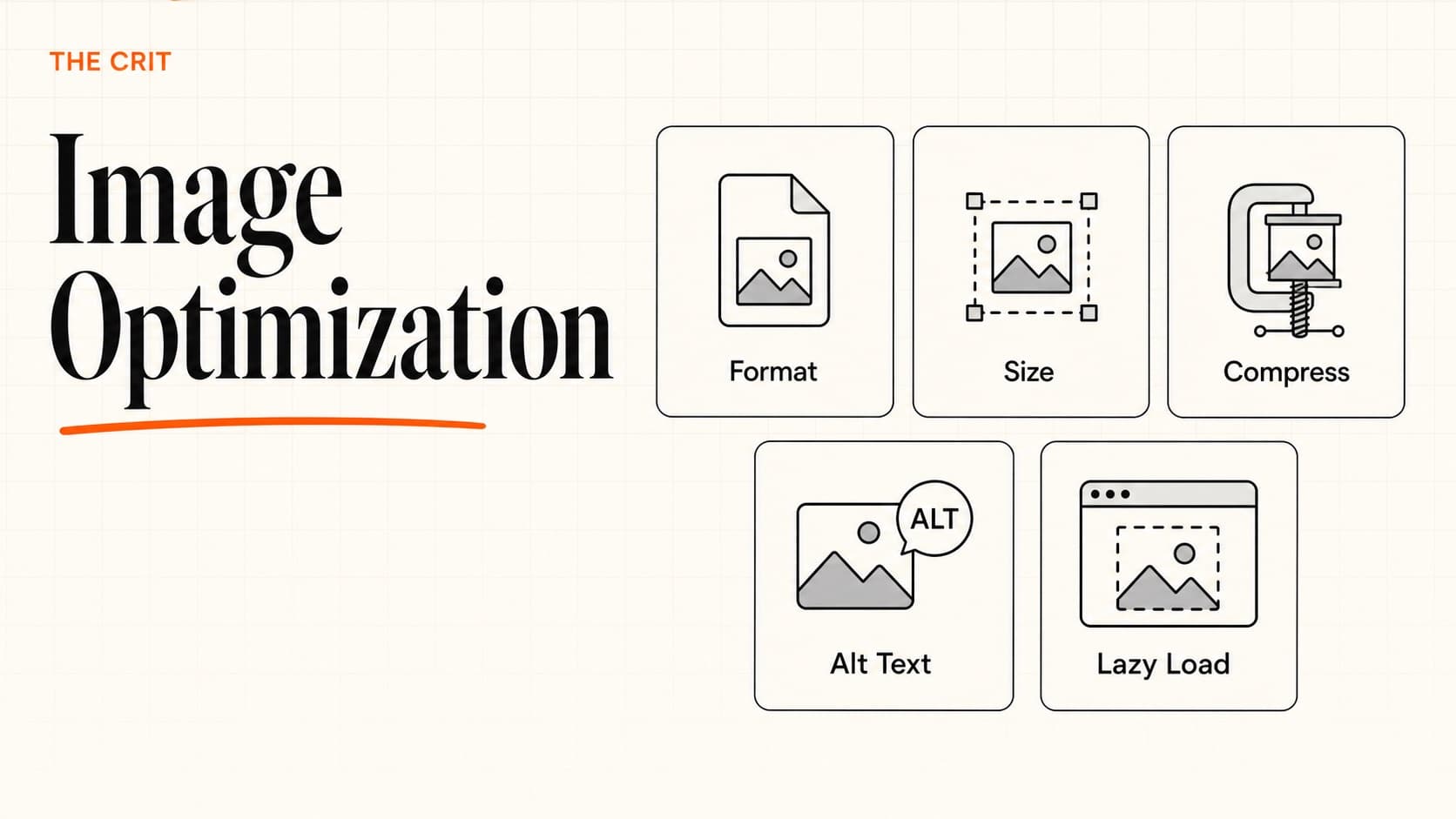
Start With the Image's Job
- 1PurposeIs this proof, explanation, navigation, identity, or decoration?
- 2Rendered contextWhat is the largest slot it occupies, and does mobile need a different crop?
- 3DetailWhat must remain legible—UI labels, typography, texture, chart data, or none of these?
- 4FormatWhich candidate preserves that detail at an efficient size?
- 5DeliveryWhich dimensions and variants should the browser choose from?
- 6PriorityIs it critical to the first view or safely deferred?
- 7AlternativeWhat should a person understand when they do not see the image?
- 8VerificationDoes the browser load the intended file without losing proof or stability?
Choose a Format by Content
Browser support and encoders change. Avoid fixed “format X is always Y% smaller” claims; compare your own assets and confirm support for your audience.
- AVIF or WebP
- Photographs, textured artwork, and many screenshot-style images when the tested result preserves detail.Watch: Encoding quality, fine UI text, transparency, animation, and the fallback behavior of your delivery pipeline.
- JPEG
- Photographs or flattened artwork when compatibility or a simple fallback matters.Watch: Repeated recompression, color shifts, halos, and text becoming muddy.
- PNG
- Lossless screenshots, transparency, and graphics whose sharp edges do not survive lossy compression.Watch: Large dimensions and unnecessary color data can make files heavy.
- SVG
- Logos, icons, diagrams, and simple vector illustrations that need to scale.Watch: Text alternatives, embedded text, complex paths, external assets, scripts, and untrusted SVG content.
- GIF
- Only when its constraints are acceptable and a better video or animated-image format is not practical.Watch: Large files, limited color, missing controls, motion accessibility, and no useful pause behavior.
Prepare the Source
- Export from the best available source instead of recompressing an already degraded web image.
- Crop away unused canvas and remove invisible layers.
- Resize for the largest real display need; keep an archival master outside the production site.
- Use a consistent color space appropriate for web delivery and inspect color-critical work after export.
- Strip metadata that is unnecessary for the experience and may expose private information.
- For UI screens, test whether fine text remains legible. Sometimes a tighter crop plus nearby live text works better than one giant screenshot.
- For comparisons, match crop, scale, background, and device framing so the visual does not distort the conclusion.
Deliver Responsive Images
Give the browser image candidates and accurate information about the rendered slot. In HTML, srcset supplies candidates, sizes describes the slot, and <picture> can provide art direction or format alternatives.
- Generate a small set of widths around real layout needs; more variants are not automatically better.
- Write
sizesto match the CSS layout. A wrong hint can make the browser fetch a resource much larger than the slot. - Use
<picture>when the composition must change, not just when resolution changes. - Keep a valid
srcfallback and oneimgelement with the final alt text. - If a CMS or framework transforms images, understand its generated variants, cache behavior, quality settings, and remote-source rules before pre-optimizing everything yourself.
Set Loading Priority
Defer when safe
Consider lazy loading
- Case-study images well below the initial viewport
- Related-project previews near the end
- Noncritical iframes and media embeds
Initial view
Load promptly
- The primary image visible when the page opens
- The likely Largest Contentful Paint element
- Small identity assets required for initial orientation
Do not combine aggressive preloading and lazy loading without understanding which signal wins. Inspect the network timeline and rendered result.
Prevent Layout Shift
- Set intrinsic
widthandheightattributes or reserve space with a stable aspect ratio. - Do not inject image wrappers whose dimensions appear only after client-side code runs.
- Give carousels and embeds a predictable container before their content loads.
- Use placeholders only when they preserve the final geometry and do not create distracting flashes.
- Check layout shift on the real page; a component can be stable in isolation and still move when fonts, banners, or adjacent content load.
Write the Accessible Alternative
- Informative image
- Describe the information or purpose not already conveyed nearby. For a UI comparison, name the meaningful difference—not every pixel.
- Functional image
- Describe the action or destination, as you would for a text link or button.
- Complex image
- Use concise alt text plus a nearby detailed explanation, data table, or process description.
- Decorative image
- Use empty alt text so assistive technology skips it. A caption and alt should not repeat each other without reason.
Verify the Result
- Open the page at narrow, medium, and wide widths with device-pixel differences when available.
- Inspect the Network panel: requested URL, format, transfer size, dimensions, cache result, and loading priority.
- Disable cache and throttle the connection to expose late images and layout movement.
- Compare the rendered image with the source at the size a reviewer sees, not only at 100% in an editor.
- Run Lighthouse or PageSpeed Insights, then trace each recommendation to a real page problem.
- Test zoom, high contrast, reduced motion, keyboard navigation, and screen-reader output around media.
- Repeat after CMS, framework, CDN, or template changes.
For page-level diagnosis, continue with site speed optimization.
Technical Sources
- MDN: Image file type and format guide — current format characteristics and compatibility references.
- MDN: Responsive images — resolution switching and art direction.
- MDN: The img element — dimensions, responsive attributes, loading, and decoding.
- web.dev: Browser-level image lazy loading — when native lazy loading helps and when not to use it.
- W3C: Alt Decision Tree — choosing a text alternative by image purpose.
- Next.js Image component — framework-specific sizing, loading, and optimization behavior.
QuestionsAnswers
Image Optimization Questions
A few practical details before you keep going
Share this resource

Written by
Nikki KippleProduct Designer & Design Instructor
Designer, educator, founder of The Crit. I've spent years teaching interaction design and reviewing hundreds of student portfolios. Good feedback shouldn't require being enrolled in my class — so I built a tool that gives it to everyone. Connect on LinkedIn →
Too close to your own work?
Send one screen, case study, or URL. We'll show what's working, what's getting skipped, and what to fix next.